
Android Auto
Google LLCAuto & Vehicles
4.1498.39K Reviews
- Version
- Varies With Device
- Installs
- 10.00B
- Age Rating
- Everyone
Screenshots
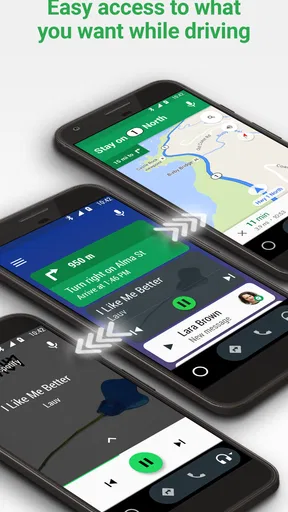
Our Review of Android Auto
 Analysis by Appyee
When Android Auto works smoothly, it makes a familiar drive feel more organized: directions, audio, and messages are easier to manage from the car’s display or with voice commands. Where people tend to get stuck is before the drive even begins. A phone may charge without appearing on the dashboard, a car may not support the connection method the driver expects, or the system may connect but behave inconsistently. I find it helps to treat setup as a chain of separate checks rather than assuming the app itself is the only thing that matters.
The basic idea is to bring selected phone functions into a driving-friendly interface, not to reproduce every feature of a phone on the dashboard. That distinction matters. If you expect to browse apps freely or handle a long conversation while moving, this is the wrong tool. Its real value is reducing the need to pick up your phone for common driving tasks, while still requiring you to keep your attention on the road.
Start with the connection, not the controls
Before troubleshooting the screen, check whether your vehicle or its installed stereo supports Android Auto and whether your phone meets the current requirements. The app’s original release was in 2015, but the supported experience can change over time, so an old setup guide may not match what your phone or car currently offers. A cable connection and a wireless connection are not interchangeable: wireless use depends on compatible equipment, while a wired connection depends on a cable that can carry data rather than only charge.
If nothing appears after plugging in, try a different cable that you know can transfer data, then reconnect with the phone unlocked and follow any prompts shown on either screen. Check that the car is set to the correct input and that the phone is not connected to another accessory in a way that interrupts the expected audio or display route. These are simple checks, but they help separate a connection problem from a navigation or media problem.
For a first setup, do it while parked. That gives you time to respond to prompts, choose which supported apps you want available, and learn where the dashboard controls are. If the car offers both wired and wireless use, starting with a cable can make it easier to establish whether the phone and vehicle communicate at all. Once that works, wireless setup—if supported—can be tested separately.
What to check when something disappears
A working dashboard connection does not mean every phone app will appear there. Android Auto is designed around compatible driving tasks, and an app that is installed on the phone may not be available in the car interface. I would first check that the app you want is supported for this use, then make sure it is installed and usable on the phone itself. If a music service or messaging app is missing, repeatedly reconnecting the car is unlikely to fix an app-availability issue.
It is also useful to test one function at a time. If directions appear but audio does not, check the selected audio source and the playback app rather than resetting the whole connection. If voice requests fail but tapping a dashboard control works, check whether the phone’s assistant responds outside the car. This kind of small, controlled test makes the cause easier to identify and avoids turning a minor issue into a complete setup restart.
When the display freezes or a connection drops, pull over safely before changing settings. Then disconnect and reconnect the phone, close and reopen the affected app, or restart the phone if the problem continues. If the same failure happens only in one vehicle, the car’s system or its compatibility may be involved; if it happens across different compatible setups, the phone or app is a more useful place to investigate. I would avoid trying to troubleshoot while driving, even when the fix seems obvious.
Where it fits among driving options
Compared with using a phone mounted on the dashboard, Android Auto can offer a more integrated way to use supported navigation, media, and messaging. A mount may still be the more practical choice in a car without a compatible display, or for someone who prefers a particular phone app that does not appear in the car interface. The built-in infotainment system may also be enough for drivers who mainly want radio and basic directions and do not need their phone’s services on the dashboard.
The strongest case for Android Auto is a routine that combines several short tasks: starting directions, changing a podcast, or hearing a message read aloud. It is less compelling for someone who rarely uses those services in the car, dislikes voice interaction, or would find dashboard prompts distracting. The system can make access more convenient, but it cannot make phone use risk-free; the driver still needs to choose a safe moment and follow local rules.
Getting Started with Android Auto
So, what exactly is Android Auto? Think of it as your phone’s cool sibling that knows how to make your ride more entertaining and safer. The app connects your smartphone to your car’s dashboard, allowing you to access a bunch of apps and features without taking your eyes off the road. Setting it up was a breeze. All I needed was a compatible smartphone with Android 6.0 or higher and a car that supports Android Auto or a compatible aftermarket stereo.
Once you’ve got those sorted, it’s as simple as plugging in your phone with a USB cable or connecting wirelessly if your car supports it. The interface pops up on the car’s display, and you're good to go. Easy peasy!
Features That Make Life Easier
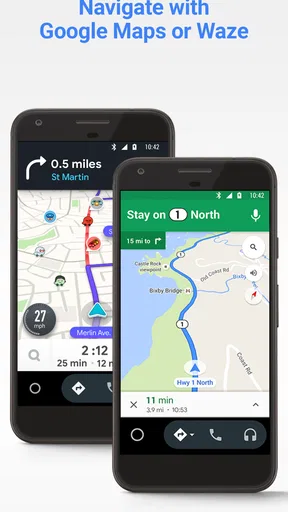
Now, onto the goodies. The first thing I noticed was the navigation feature. Powered by Google Maps, it’s super intuitive. You can use voice commands to find the quickest route, check traffic conditions, or even discover new places. It’s like having a co-pilot who knows every shortcut in town.
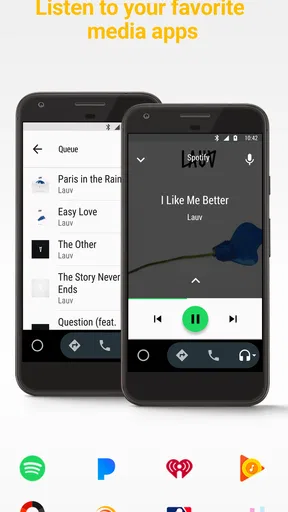
Music lovers, rejoice! Whether you’re into Spotify, Pandora, or YouTube Music, Android Auto has you covered. The app lets you play your favorite tunes, podcasts, or audiobooks on the go. And yes, you can control it all with your voice—no more fumbling with the radio dials.
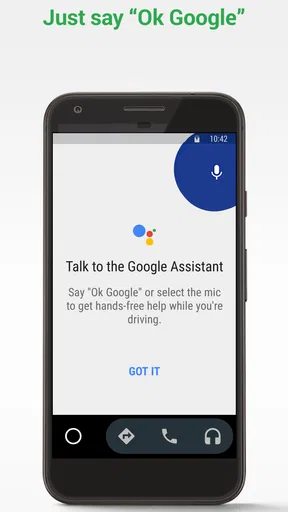
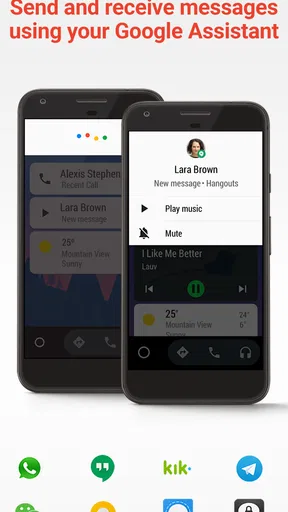
Communication while driving can be tricky, but Android Auto makes it safe and seamless. You can send and receive messages hands-free using Google Assistant. Just say, "Hey Google, text Mom I’m on my way," and voilà, your message is sent. The app supports a variety of messaging platforms like WhatsApp and Messenger, which is a nice touch.
Safety First, Fun Second
One of the main reasons I love Android Auto is its focus on safety. The interface is designed to minimize distractions, with large icons and an easy-to-navigate layout. Plus, the voice command feature is robust, allowing you to keep your hands on the wheel and eyes on the road. It’s a win-win for safety-conscious drivers.
And it’s not just about being practical. The app adds a layer of fun to your drives. You can ask Google Assistant to tell you jokes, give you weather updates, or even play trivia games. It turns those long, boring drives into an engaging experience.
Making the daily routine smoother
A realistic use is the weekday commute. Before leaving, I would set the destination while parked, start a playlist or podcast, and then rely on the dashboard for route guidance. If plans change, voice input can be more convenient than typing, but I would still pull over if a request needs more attention than a brief spoken instruction. On an unfamiliar trip, checking the route before setting off also helps avoid fiddling with the screen at a junction.
There is a useful trade-off when several people share a car. A connected phone can make its own navigation and media choices available, but the next driver may need to connect their own phone and select their preferred services. If the vehicle is used by family members with different habits, agreeing on a simple handoff routine—disconnect, connect the next phone, confirm the audio source—can prevent confusion at the start of a trip.
For drivers who often receive messages, voice handling can reduce the temptation to reach for the phone. I would keep messages brief and avoid dictating anything complicated in traffic: voice recognition can mishear names or wording, and a long correction is not worth attempting behind the wheel. The feature is best for a quick, straightforward reply when the situation permits, not for carrying on a conversation while driving.
What the numbers say—and what they do not
Google LLC develops Android Auto, which is free and has an Everyone content rating. Its average rating is 4.1 from around 6 million ratings, with roughly 484,000 written reviews and over 10 billion installs. Those figures suggest that it is widely used, but they cannot tell me whether it will work well with a particular combination of phone and car. Compatibility and the quality of the connection matter more to an individual driver than overall popularity.
In the auto and vehicles category, it is a companion to the car rather than a replacement for the vehicle’s own controls. That is why I would not judge it only by how many apps appear on the screen. Its usefulness depends on whether the key services you rely on are supported, whether the display is easy to read in your car, and whether the connection stays dependable on the journeys you actually make.
For a short trip around town, a driver may prefer the car’s existing radio and avoid connecting a phone at all. For a longer drive, the combination of navigation and audio can be more valuable, especially when the route changes or a passenger wants to manage music. A passenger can also help choose a destination or handle a message, which is often the better option than asking the driver to interact with the display.
Limits worth knowing before relying on it
Android Auto depends on more than the app: the phone, the vehicle or stereo, the connection, and the individual services all have a part to play. That makes it less predictable than a single built-in feature controlled by one device. A cable that worked yesterday can become unreliable, a supported app can behave differently after an update, and a vehicle’s interface may not match the steps shown in an older tutorial. When something changes, I would check the phone and car settings calmly rather than assume the whole system has failed.
It is also not the right choice for someone who wants unrestricted phone access while driving. The deliberately limited interface is part of its purpose, so a missing app is not necessarily a fault. If a preferred navigation tool or media service is unavailable in the car, a supported alternative or the vehicle’s own system may be a better fit. A driver who finds voice prompts distracting may be better off setting directions before departure and keeping the audio simple.
Since its release on Mar 19, 2015, Android Auto has become a familiar option for bringing phone-based driving tasks into compatible cars. The current minimum operating-system requirement is Android 9, so anyone following older setup advice should check that their phone meets today’s requirement rather than relying on an old reference to Android 6.0. This is one reason I recommend checking compatibility before buying accessories or changing a working car setup.
Safety First, Fun Second
One of the main reasons I love Android Auto is its focus on safety. The interface is designed to minimize distractions, with large icons and an easy-to-navigate layout. Plus, the voice command feature is robust, allowing you to keep your hands on the wheel and eyes on the road. It’s a win-win for safety-conscious drivers.
And it’s not just about being practical. The app adds a layer of fun to your drives. You can ask Google Assistant to tell you jokes, give you weather updates, or even play trivia games. It turns those long, boring drives into an engaging experience.
The Verdict
Alright, let’s wrap this up. Is Android Auto worth it? Absolutely! It’s like having a personal assistant in your car, making every drive more enjoyable and secure. Whether you’re commuting to work or going on a road trip, this app transforms your car into a high-tech hub.
So, if you haven’t tried it yet, give Android Auto a spin. Trust me, once you do, there’s no turning back. You’ll wonder how you ever managed without it. Safe travels!
Privacy and Permissions
See what permissions an app requests and how it handles your data.
- Device & app history
- retrieve system internal state
- Calendar
- read calendar events plus confidential information
- Contacts
- read your contacts
- Location
- approximate location (network-based), precise location (GPS and network-based)
- SMS
- receive text messages (SMS), send SMS messages
- Phone
- directly call phone numbers, directly call any phone numbers, modify phone state, read call log, read phone status and identity
- Microphone
- record audio
- Wi-Fi connection information
- view Wi-Fi connections
- Device ID & call information
- read phone status and identity
- Other
- view network connections, pair with Bluetooth devices, access Bluetooth settings, change network connectivity, connect and disconnect from Wi-Fi, full network access, run at startup, draw over other apps, control vibration, prevent device from sleeping, modify system settings, read Google service configuration
Verdict
Strengths of Android Auto
- Seamless integration with car systems.
- Voice commands enhance hands-free use.
- Supports multiple navigation apps.
- Access to music and podcasts easily.
- Regular updates improve functionality.
Limitations of Android Auto
- Limited app compatibility.
- Requires a strong internet connection.
- Setup can be complicated for some.
- Occasional connectivity issues.
- Not all features available offline.
Other Releases by Google LLC
View All
Google Calendar
Productivity4.6

Google Messages
Communication4.6

Tools4.0

Google TV
Video Players & Editors3.9
Similar Picks in This Category
View All
maxim — order a taxi & food
PT. SITO4.7

Штрафы ГИБДД: проверка с фото
Pays LLC – Штрафы ГИБДД4.7

Номерограм – проверка авто
Авто Ассист4.8

Дром Авто
Дром4.9


Urent
Urent4.5
You May Also Like
View All

Frequently Asked Questions
What is Android Auto and how does it enhance my driving experience?
Android Auto is a mobile app developed by Google that allows you to integrate your smartphone with your car’s infotainment system. It provides a safer way to access apps like navigation, music, and messaging while driving. By using voice commands, you can keep your focus on the road, making your driving experience more convenient and secure.
Is Android Auto compatible with my car and smartphone?
Android Auto is compatible with most Android devices running version 6.0 (Marshmallow) and up. To check if your car supports Android Auto, look for the Android Auto logo or consult your car manufacturer’s website. Many modern vehicles and aftermarket head units support Android Auto, enabling seamless integration.
Can I use Android Auto wirelessly, or do I need a USB connection?
While Android Auto traditionally requires a USB connection, wireless functionality is available on some devices and car models. To use it wirelessly, your phone must be running Android 11 or later, and your car must support wireless Android Auto. Check your vehicle’s manual or manufacturer’s website for compatibility details.
What apps are compatible with Android Auto?
Android Auto supports a variety of apps that enhance your driving experience, including Google Maps, Waze, Spotify, WhatsApp, and more. Developers continuously update and add new apps, ensuring a wide range of entertainment, navigation, and communication options. You can find compatible apps in the Google Play Store.
How do I troubleshoot common Android Auto issues?
If you encounter issues with Android Auto, try basic troubleshooting steps like restarting your phone and car system, checking your USB connection, or updating the app and your phone’s software. For specific problems, consult the Android Auto Help Center or contact your car’s manufacturer for guidance.
